
Latest: How to publish app on google play store 2021

 Tutorial : How to publish app on google play store  using Google Console New Layout 2021


To upload an app on google play store we need to create an account and also need to pay 25 USD one time fees.

To create a developer account on play store , go to https://play.google.com/console/signup and fill the form or you can directly login with your Gmail account.
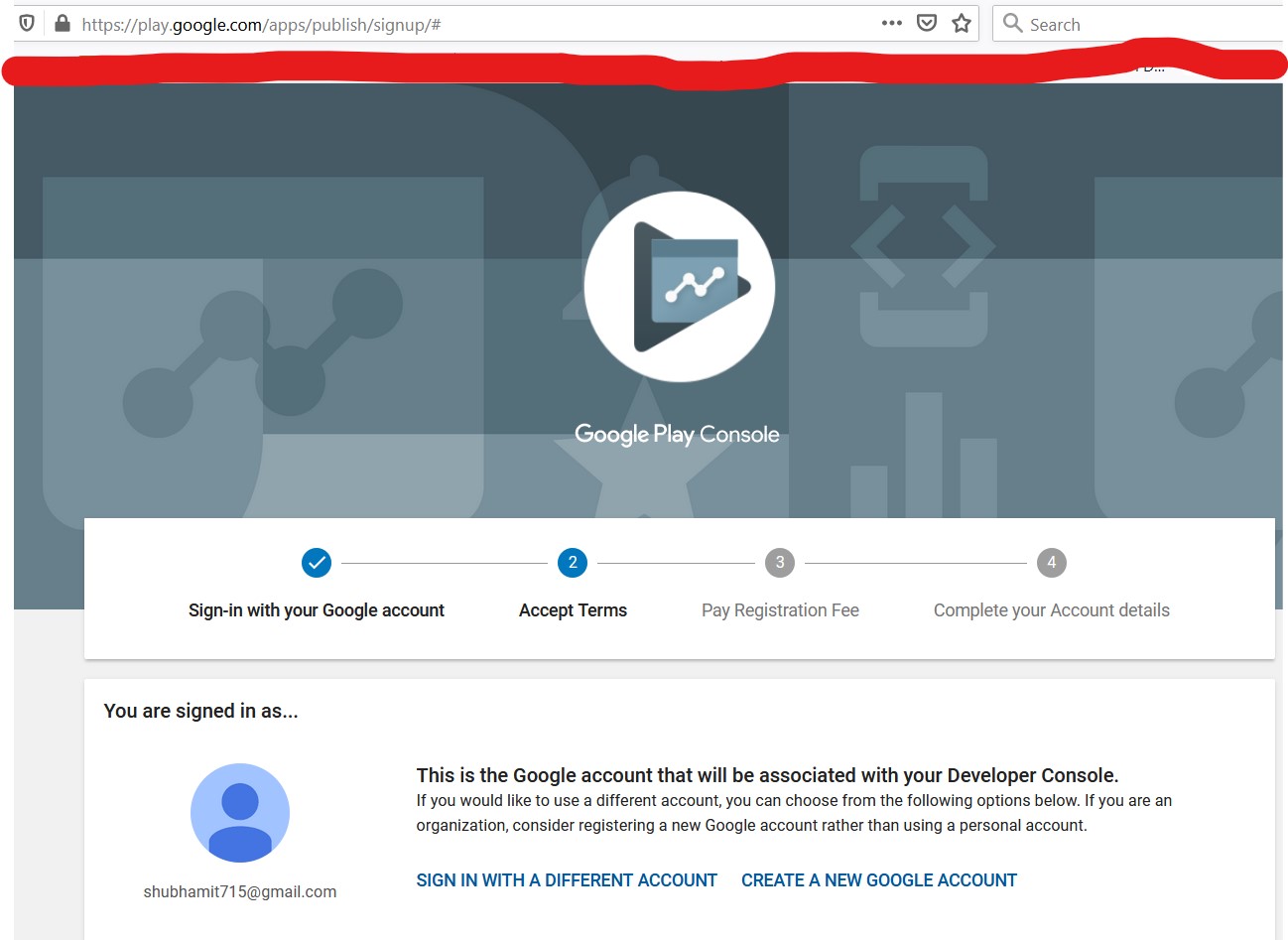


Now after form submission you need to pay $25 one time fees.

After that you can login into your account. and now on dashboard click on "All apps" and then click on "Create app" button


Now you will see a form where you need to fill all required details like its a game or an app and its paid or free app and also need to accept privacy policy and terms then you can submit it.
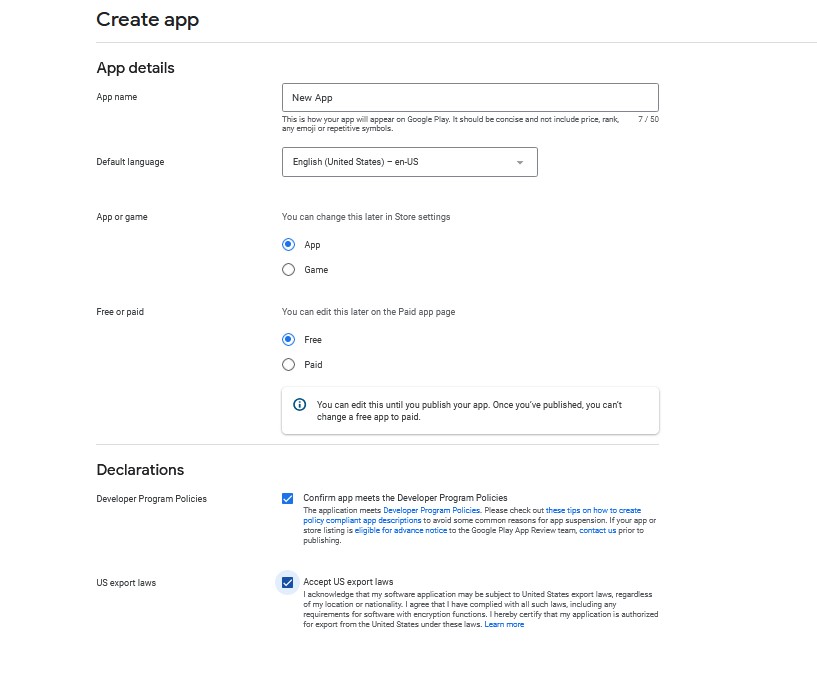


Now after saving details you can select this app and now click on left bar production button


Now click on "Create new release" button that will show you app upload form like below screenshot , you need to upload your .apk or .aab file here. Now click on save button


Now it will show step 2 for review release , submit information and click on Review release button


Now your app is submitted for review and google developer team will check it and send you feedback, it will take normally 1 day to get review, if everything will be fine then you can see status of your app like below.


SO your app will be live after all above mentioned points. If you face any issue then please comment below. :)


Related Links

Submit apk file on google play

How to create an google developer account

How to release an app on android developer account.


Comments

  1. Empower your app's success with Proven Roi's dynamic CRM and marketing strategies! 🚀📲 Curious about publishing on the Google Play Store? Maximize your app's potential with Proven Roi's expert guidance. Explore our winning approach at Proven Roi and make your mark in the digital landscape! 🌐

    ReplyDelete

Post a Comment

Popular posts from this blog

Convert website to android and ios application using react native expo webview

Convert website to android and ios application using react native expo webview If you want to check you can check on github by using below link also dont forget to give star ;) Source Code: https://github.com/shubham715/react-native-expo-webview-convert-website-to-app React native is the best choice to create multi platform mobile application , but sometimes we dont want to write a complete application because we already have a web application or a website and its complicated to manage both . So we have a solution for this problem. React native supports webView that makes easy to run any website url like an app natively. What is webview in react native? In React native, WebView helps to show web content in a native view. For this tutorial we will use EXPO. What is EXPO ? EXPO a set of tools to help you quickly start an app. Expo have many inbuilt components that helps to simplify the development and testing of React Native app. So please follow the below steps to c...

Solution-windows 'expo' is not recognized as an internal or external command

Solution for expo is not recognized as an internal or external command,operable program or batch file in Windows 10 Sometimes expo will not work globally mostly in windows 10, If you are facing same issue then follow the below Steps 1) Click on windows button and search for  " Environment variables"  and click on "Edit the system environment variables" 2) Now you will see a popup like below screen. Then you need to click on Environment Variables. (Please see highlight part in below image)     3)Then click on new button that i have highlighted in below image 4. Then a popup will open and you need to fill details like below mentioned Variable Name :Path Variable Value: %USERPROFILE%\AppData\Roaming\npm Here we are creating a new path variable and passing location of npm.   Now Click on OK and close all the terminal windows and open new CMD or terminal and type Expo . Great now you can access expo from any...

Read files from folder using php

Read files from folder using PHP Today we learn how to read all files from a folder . we will learn to list all files and read all files . So please follow below steps:-   METHOD 1 1) List all files from folder If you want the list of all files in a folder then you can do by using below code //Get a list of file paths using the glob function. $allFilesList= glob('myfolder/*'); //Loop through the array that glob returned. foreach($allFilesList as $filename){ //Simply print them out onto the screen. echo $filename; echo '<br>'; } The above code will print list of all files like file1.jpg file2.png file3.gif file4.pdf   If you want to read only specific extension file like you just want to a list of all png files then you can do it by using below code. //Get a list of all files ending in .txt $fileList = glob('myfolder/*.png);   METHOD 2 Here is the second method. here we are using scandir() function to s...